JSON is everywhere: API responses, config files, app settings and logs. It is easy to read when it is formatted, and almost impossible when it arrives as one long line. It is also strict. One extra comma and the whole file is rejected.
This guide shows how to format and validate JSON with the free freetoolza JSON Formatter, and how to fix the errors you will meet most often. Everything runs in your browser, so your data is not uploaded.
What does “formatting” JSON mean?
Formatting (also called pretty-printing or beautifying) adds line breaks and indentation so every key and nested object sits on its own line. It changes only whitespace, never your data. The opposite is minifying, which removes all extra whitespace to make the payload smaller.
Step 1: Paste your JSON
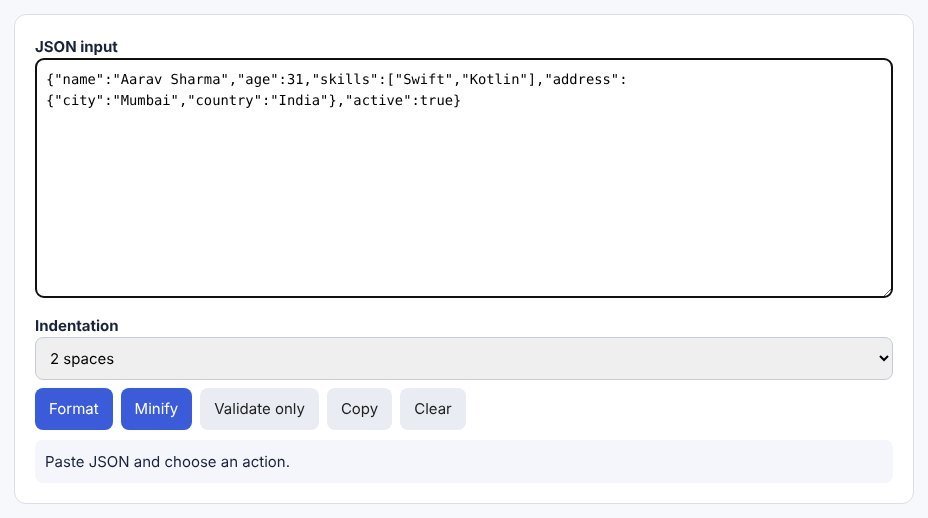
Open the JSON Formatter and paste your data into the input box. Here is a typical minified API response:
Step 2: Click Format
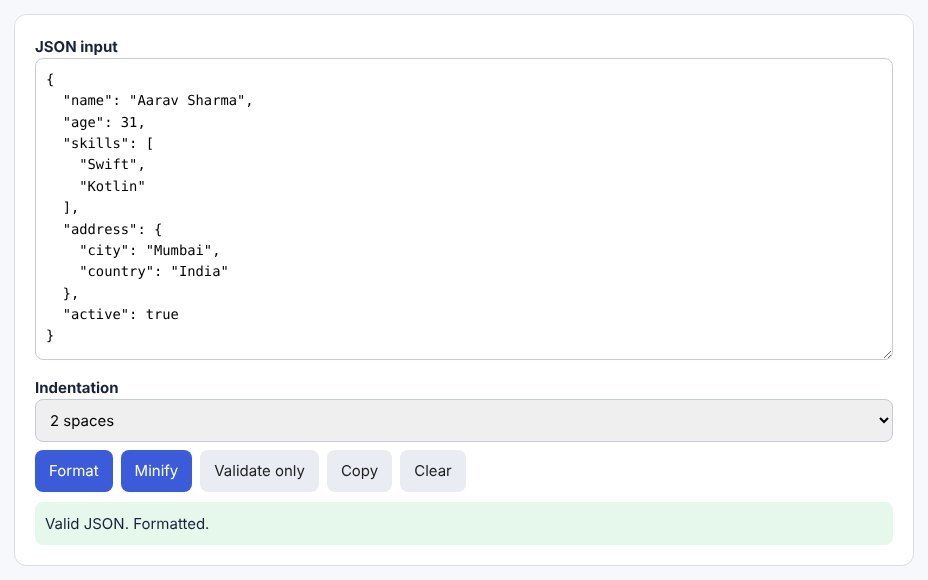
Choose 2 spaces, 4 spaces or tabs, then click Format. If the JSON is valid you get a green “Valid JSON” message and a tidy, indented result. Now nested objects such as address and arrays such as skills are easy to scan.
Use Minify when you need the compact version again, for example before pasting it into a request body, and Copy to put the result on your clipboard.
Step 3: Validate and read the error
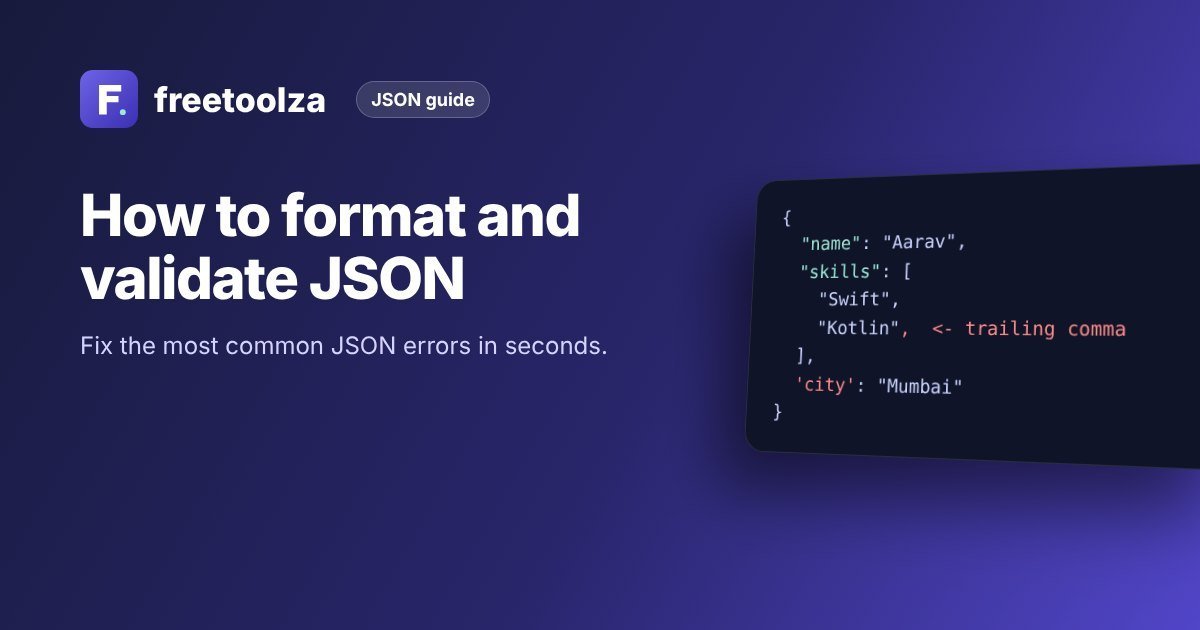
Click Validate only to check JSON without changing it. When something is wrong, the tool shows your browser’s parser message, and where possible the line and column to look at. In the example below there are two classic mistakes: a trailing comma after "Kotlin" and single quotes around 'city'.
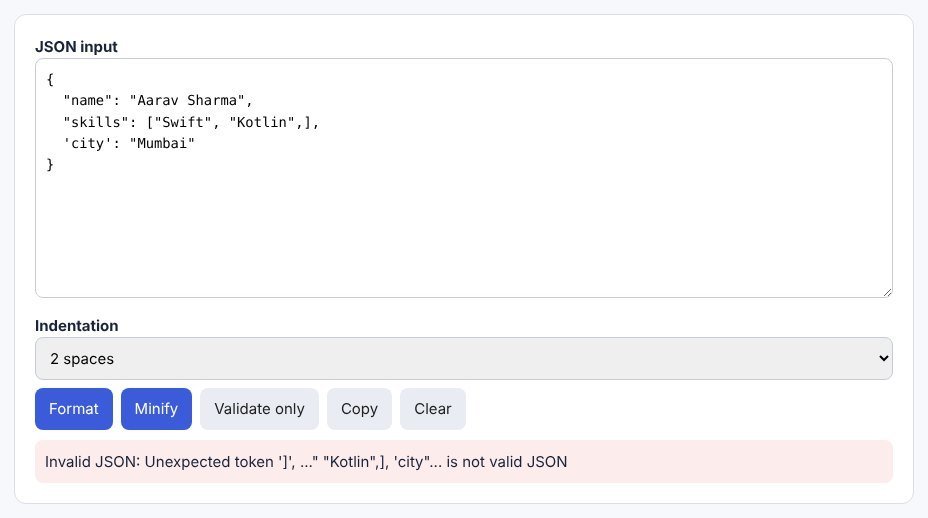
The parser stops at the first problem it finds. Fix it, validate again, and repeat until you see “Valid JSON”.
The 6 most common JSON errors and how to fix them
| Error | Wrong | Right |
|---|---|---|
| Trailing comma | ["a", "b",] | ["a", "b"] |
| Single quotes | {'city': 'Pune'} | {"city": "Pune"} |
| Unquoted key | {name: "Riya"} | {"name": "Riya"} |
| Comments | {"a": 1 // note} | {"a": 1} |
| Missing comma | {"a": 1 "b": 2} | {"a": 1, "b": 2} |
| Wrong literals | {"ok": True, "x": undefined} | {"ok": true, "x": null} |
Tip: JavaScript objects and Python dictionaries look like JSON but are not the same. If you copied data from code, check quotes, True/False/None and trailing commas first.
Validate JSON in your own code
The same check is one line in most languages. Wrap it in error handling so a bad response does not crash your app:
// JavaScript
try {
  const data = JSON.parse(text);
} catch (err) {
  console.error("Invalid JSON:", err.message);
}

# Python
import json
try:
    data = json.loads(text)
except json.JSONDecodeError as err:
    print(f"Invalid JSON at line {err.lineno}, column {err.colno}: {err.msg}")
Practise with real-looking data
Need sample JSON to practise on? Request a few items from the Demo REST API (no key needed) or the Fake API, which returns the same data in simple, medium and complex structures. To start a new file from scratch, try the JSON Template Creator.
Frequently asked questions
Does formatting change my data?
No, only whitespace. Two edge cases: very large numbers can lose precision in JavaScript, and if a key appears twice only the last value is kept.
Is it safe to paste private JSON?
The formatter runs in your browser and does not upload your data. Even so, avoid pasting passwords, tokens or API keys into any website.
Can the tool fix errors automatically?
No. It tells you what and where the problem is, so you stay in control of your data.